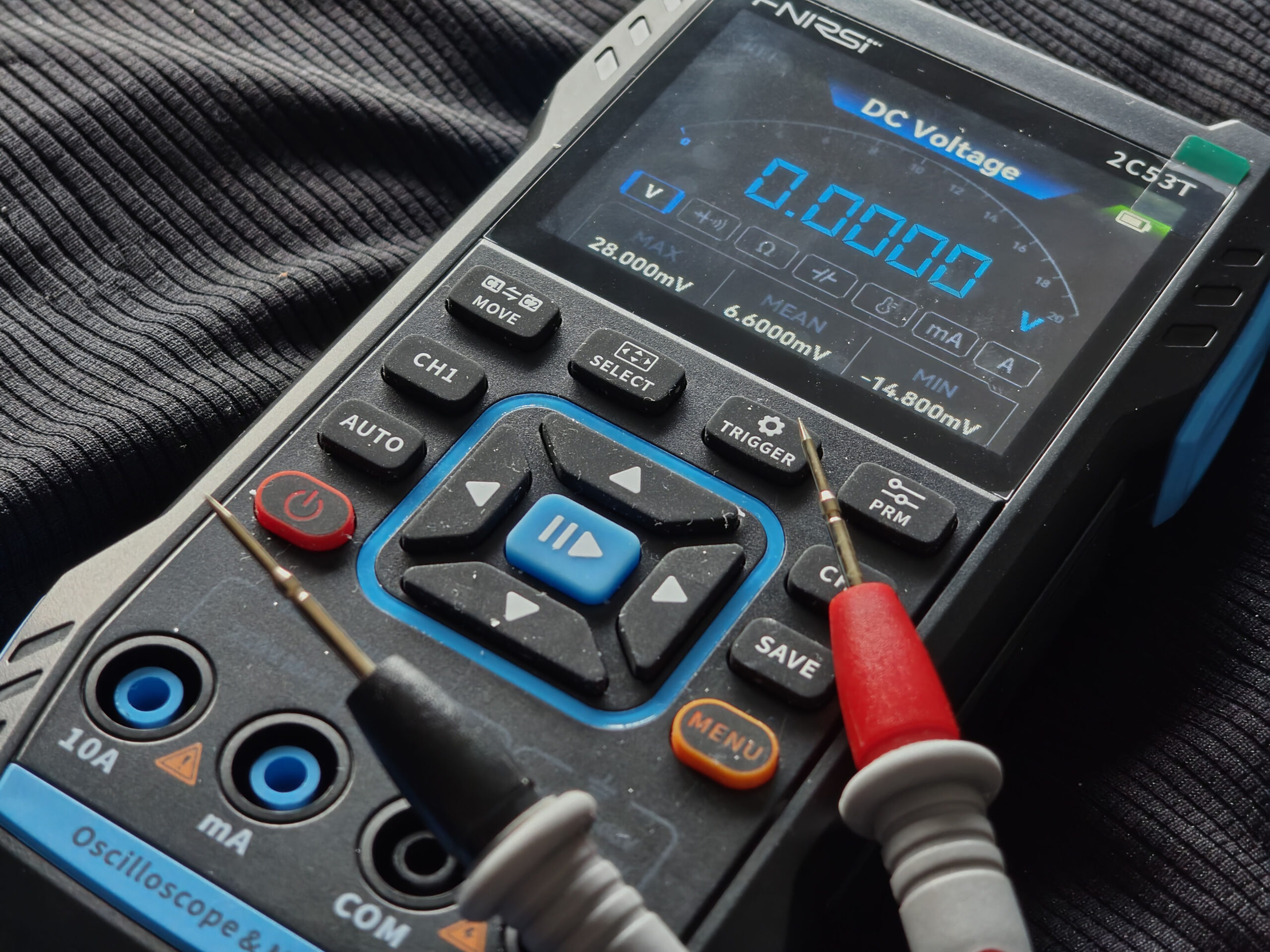
Over the years, I’ve had more multimeters than one person typically needs… From basic ones I bought in Maplin Electronics years ago, that was probably wildly inaccurate, to a stupidly precise Fluke 87V that cost more than I could realistically justify.
Although the FNIRSI 2C53T isn’t strictly a multimeter, it’s a 3-in-1 device, so I count it as one, and although it’s marginally slower to start up than something like the Fluke 87V or Kaiweets KM601s meters I also use, the Oscilloscope and Signal generator are something I use regularly.
One of my biggest complaints about the FNIRSI 2C53T, was the horrific choice of font – it’s predecessor, the FNIRSI 2C23T used a more cleaner, professional font, rather than the ‘Times New Roman’ style, and thankfully, the latest firmware, version 1.2.0 fixed that, and replaced the font, so time for a firmware update !
Although in my everyday life as a software developer, I work on a Windows device, the laptop I’ll grab for quick tasks, etc. is my MacBook which is usually in reach, and fully charged. I quickly learned, that one of the Mac quirks that has always bugged me personally, was going to be such a headache… the hidden dot files and directories.
Any drive you attach to macOS, ends up with folders like .fseventsd being created, along with others for Trash and Search, etc, and when you copy a file over to a USB device, etc. for example ‘untitled.txt’, it will also create an ‘AppleDouble’ file named ‘._untitled.txt’ which holds extended properties for the file.
You can turn on USB Sharing on the FNIRSI 2C53T, which mounts it’s internal storage as a drive, at this point, it allows retrieval of saved Oscilloscope images and changing the boot logo, however, this is not how you update the firmware.
Upon holding the ‘Menu’ button, and then the ‘Power’ key, you get presented with a black screen that merely says ‘Firmware Upgrade’ ( as of versions up to 1.2.0 at least anyway ). At this point, when you insert the. USB-C cable – which is questionable, as they specifically tell you to use a USB-A to USB-C, and not a USB-C to USB-C cable but there are mixed reports, you will see another volume on your Desktop named ‘IAP’.
This is where the firmware .bin file should be placed for the update, however, this is not actually a drive, it’s a pseudo-drive, the boot loader code is presenting an area of the RAM as a drive, it’s volatile, there is one file ‘Ready.TXT‘ which has a size of 0Kb.
The problems start here, the boot loader code is a bit lacking, and it is not particularly well documented by FNIRSI.
When you copy over the firmware, which as of my version, was 734Kb, the AppleDouble file, was only 4Kb, so was written first. The boot loader is sitting waiting on a .bin file, and although there are recommendations on filenames, I found it didn’t care.
The firmware I was using was named ‘APP_2C53T_V1.2.0_251015.bin‘, therefore, the AppleDouble file was named ‘._APP_2C53T_V1.2.0_251015.bin‘, and as it was the first file the device saw, it tried to process this.
The device gave no indication of what it was doing, so having being burnt by being impatient with firmware updates in the past, I just left it as it was, eventually, after over an hour, I figured there was no way it was still applying a 734Kb firmware file, so rebooted.
To a blank screen.
It wasn’t my lack of patience this time, it was purely some weird behaviour of the AppleDouble file. Thankfully, the device could be started again in Firmware update mode as before.
I knew I could have just went and got my Windows laptop and had it back working in no time, but I wanted to find a way around it, just being stubborn.
After a lot of messing around, trying to disable different options for Spotlight, trying with ‘COPYFILE_DISABLE=1‘, etc. I found some inevitable outcomes – the AppleDouble file will seemingly always be created, regardless if you copy it via Finder or via the Terminal app, and no matter what you disable, etc. without breaking the OS, .fseventsd will always be created.
In the end, the solution was simply doing a block level copy.
So, what you need, is the location of the firmware file you have downloaded ( for example if it’s in Downloads, it’ll be something like ‘~/Downloads/APP_2C53T_V1.2.0_251015.bin‘ ) and how the volume appears on your device, so unless you have specifically changed things, or future updates change it, it will most likely be ‘/Volumes/IAP‘
- Open the Terminal App, it should not matter what directory you are in, as you will be specifying paths directly.
- Verify the location of the firmware file is correct, so execute the following, substituting the path as required
‘file ~/Downloads/APP_2C53T_V1.2.0_251015.bin‘
This should return a result similar to this, if it doesn’t, check the path of the firmware file you downloaded.
‘APP_2C53T_V1.2.0_251015.bin: data‘ - Verify the device is mounted properly, so execute the following
‘ls /Volumes/IAP‘
You should see the following
‘total 32‘
drwx------@ 1 yourusername staff 16K 1 Jan 1980 .
drwxr-xr-x 4 root wheel 128B 15 Mar 18:40 ..
-rwx------ 1 yourusername staff 0B 18 Apr 2008 Ready.TXT - Once this is all verified, what you need to do is essentially copy the file over bit by bit ( a block level copy ), without doing a traditional copy that will cause other processes to get involved. Therefore, we need to execute the following command
‘dd if=~/Downloads/APP_2C53T_V1.2.0_251015.bin of=/Volumes/IAP/APP_2C53T_V1.2.0_251015.bin bs=1m conv=fsync‘
Once this is complete, I would recommend leaving the device plugged in for 2 minutes or so, then unplug it, and start it up as normal, you should now have the new firmware without issues !
Although I do not have other similar FNIRSI devices to check, I would take an educated guess that a lot of there devices may suffer the same problem, so this could be used to resolve problems there as well.
The FNIRSI 2C53T can be found here on Amazon, the Fluke 87V can be found here and Kaiweets KM601s can be found here. These are affiliate links with Amazon, and do not impact the price you pay or offers you receive, but may generate commission on purchases you make that help me maintain the site and continue to produce future content
Comments are closed